Passkey Setup Guide: How to Turn On Passkeys Without Locking Yourself Out
Passkeys are one of the best security upgrades most people can make, but the setup matters. The goal is not just turning them on. The goal is turning them on in a way that still works after a new phone, a broken laptop, or a stressful account recovery moment.
This guide walks through the safe setup pattern. If you are also switching password managers, read the password manager migration checklist first or alongside this page.

What a Passkey Actually Changes
A passkey replaces the usual typed password flow with device-based authentication tied to a specific account. In practice, that often means signing in with your phone, laptop, fingerprint, face unlock, or security key instead of remembering another password.
For most people, the advantage is simple:
- Better phishing resistance
- Fewer passwords to manage manually
- Easier sign-in on trusted devices
That does not mean you stop needing recovery planning.
Before You Turn On Passkeys

Check these first:
- Your main phone and laptop are both working
- Device lock screen security is enabled
- Your password manager or platform sync is configured correctly
- Recovery email and phone number are current
- You still know the existing password for important accounts
Do not start a major passkey rollout during travel, on a shared computer, or when you are already troubleshooting another login problem.
Choose Where Your Passkeys Will Live
Most people will use one of these storage patterns:
- Apple ecosystem via iCloud Keychain
- Google ecosystem via Google Password Manager
- Microsoft and browser-based flows
- A third-party password manager that supports passkeys
There is no universal best option. The right choice depends on where you actually sign in every day.
Use platform sync if you mostly live inside one ecosystem. Use a cross-platform password manager if your devices are mixed and you want one consistent vault.
Start With a Small Account Set
Do not convert everything in one evening. Start with a few high-value but manageable accounts:
- Main email
- Apple, Google, or Microsoft account
- One financial account if supported
- One work or productivity tool you use often
After each setup, sign out and test the new login path deliberately.
The Safe Setup Checklist
Use this sequence each time:
- Confirm recovery info is current.
- Enable passkey support in the account settings.
- Save the passkey to your chosen device or password manager.
- Test sign-in on the same device.
- Test sign-in on a second trusted device if available.
- Save any backup or recovery codes.
- Note whether the old password still works as fallback.
This sounds slow, but it prevents the “I thought it was set up correctly” problem.
Device and Backup Planning
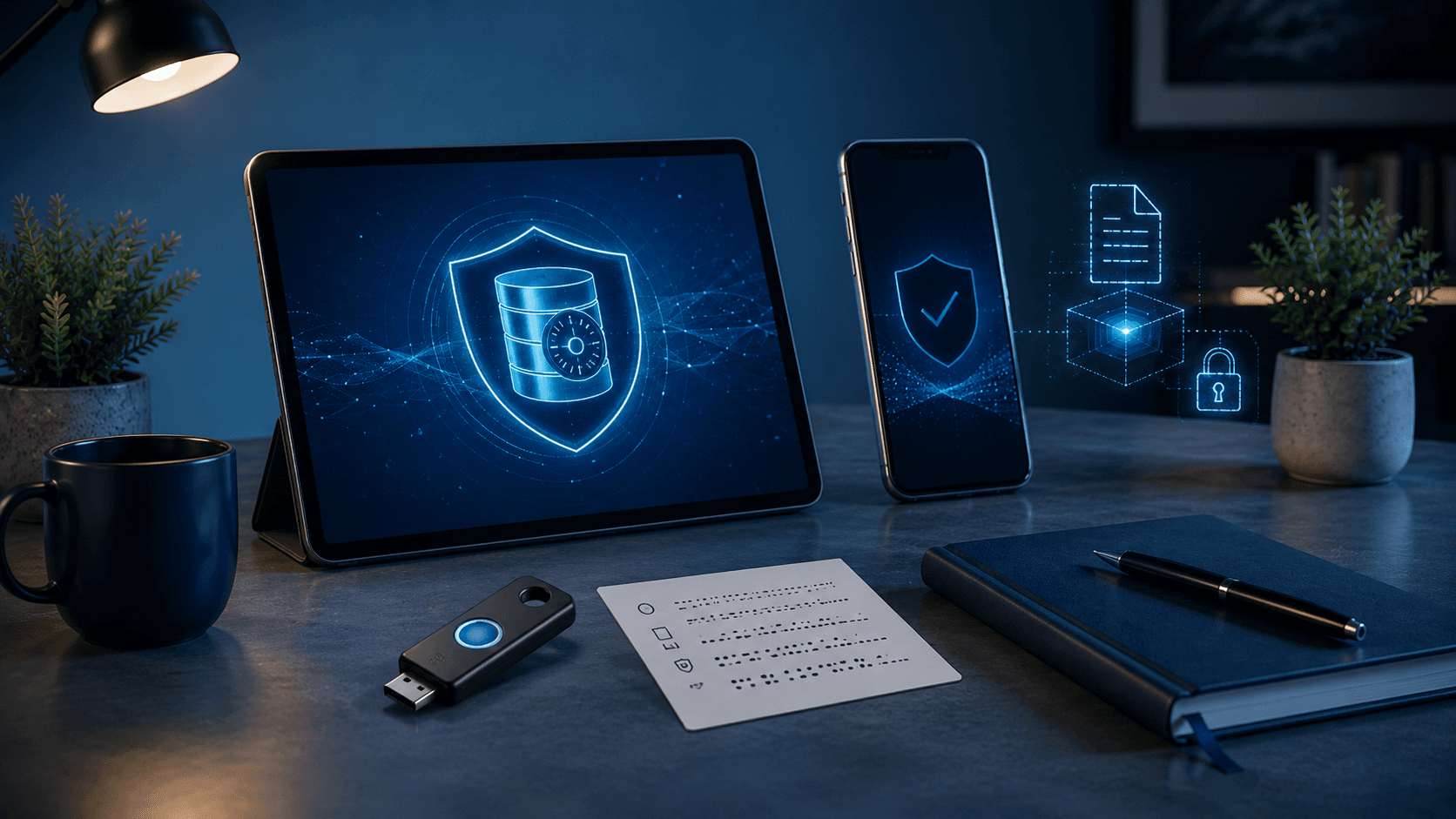
The most common passkey mistake is assuming one device is enough. It is safer to have at least one backup path.
Good backup options include:
- A second signed-in device
- A password manager that syncs passkeys across devices
- A hardware security key
- Printed or securely stored recovery codes
The exact backup stack matters less than having one.
Passkeys and Password Managers
Many people ask whether passkeys replace password managers. Usually they do not. They reduce password dependence, but most people still have a mixed world:
- Some accounts support passkeys
- Some still require passwords
- Some support both
That is why a password manager often remains the practical control center. If you are evaluating tools, the best password manager 2026 guide helps with that decision.
Good Accounts to Upgrade First
Prioritize accounts where security and recovery really matter:
- Primary email
- Cloud storage
- Password manager account
- Bank or brokerage account if supported
- Developer or domain accounts
- Work identity provider
These are the accounts that create cascading problems when compromised.
Watch for These Friction Points
Passkey setup gets messy when:
- You use both personal and work devices with different rules
- Your devices do not sync the same way
- A family account depends on one person's phone
- You are moving between password managers mid-setup
If you share accounts with a partner or household, avoid making one person's device the only practical sign-in path.
Recovery Questions to Answer Up Front
Before you roll passkeys out widely, be able to answer:
- What happens if I lose my phone?
- Can I sign in from another trusted device?
- Where are my recovery codes?
- Who can recover this account if I cannot?
- Does my password manager support the same recovery plan?
If those answers are fuzzy, pause and fix them before continuing.
Passkeys for Families and Shared Access

Passkeys work best when each person has their own account and their own device security. They work less well when households are used to sharing one login casually.
For shared household accounts:
- Keep ownership clear
- Document recovery steps
- Avoid storing everything on one person's device only
- Review whether the service supports safer sharing options
This is also a good time to clean up weak shared-login habits.
What to Do After Setup
Once a few accounts are working smoothly:
- Update your security notes
- Remove outdated recovery phone numbers
- Review old saved passwords for upgraded accounts
- Keep an eye on which accounts still need traditional passwords
This is the practical middle stage where passkeys become part of your real workflow instead of a one-time experiment.
When to Keep the Password Too
Some services still let you keep the password active as backup. That can be useful during transition, but it also means the account is only as strong as the weakest sign-in method.
If you keep the password:
- Make it unique
- Keep it in your password manager
- Turn on other recovery protections
Final Takeaway
The best passkey setup is boring in the best way: it works across your real devices, has a backup plan, and does not create a future lockout.
Start small, test thoroughly, and build from there. If you are also reorganizing your security stack, connect this with the password manager migration checklist and the best password manager 2026 guide.
Frequently Asked Questions
Do I still need a password manager if I use passkeys?
Usually yes. Passkeys work on more sites every year, but many accounts still rely on passwords, and many password managers now store and sync passkeys too.
What is the biggest risk when setting up passkeys?
The biggest risk is poor recovery planning. If you enable passkeys without backup devices, recovery contacts, or account recovery methods, you can make future lockouts harder.
Should I turn on passkeys for every account at once?
No. Start with your most important accounts, make sure sync and recovery work properly, then expand gradually.